As part of the Virtual Design Master competition I’ve taken the opportunity to play with something I have been meaning to look at for while; Cloud Foundry. You can set this up locally to start playing with it by using Pivotal’s local version of Cloud Foundry; PCF Dev.
- Make sure your processor is capable of hardware assisted virtualisation and this feature is turned on. You can use the free tool SecurAble to tell you the current status. If its not enabled, you’ll need to enable it in your computer’s bios.
- Install Virtualbox
- Create a Pivotal Network account
- Download and install PCF CLI
- Download PCF Dev
- Run the pcfdev executable from the command line so you can see if it generates any errors or if it is successful. If successful it will show the following;

- You can check the status of PCF Dev by running “cf dev status”;

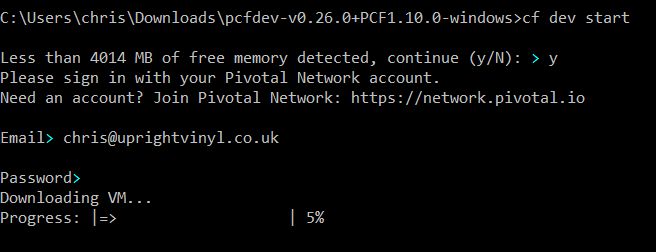
- To create the PCF Dev environment, run “cf dev start”. You’ll need your Pivotal Network credentials to start the setup. This command downloads a roughly 4.5GB OVA from Pivotal and starts it in Virtualbox.
- Once its done and its completed successfully you’ll see the following;
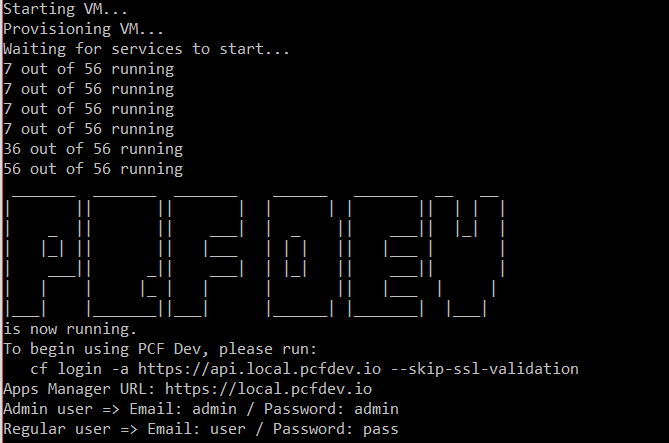
- You can then access PCF Dev via the command line using “cf login -a https://api.local.pcfdev.io –skip-ssl-validation”

- Or you can access it via your web browser using https://local.pcfdev.io

I did struggle to get PCF Dev running at the cf dev start phase. This turned out to be an issue with my local firewall (Bitdefender), which I had to disable temporarily.
That’s it for now, next step is to get something running in PCF Dev.
Cheers
Chris
 uprightvinyl.co.uk
[…] the previous post we got Pivotal’s version of Cloud Foundry running locally and successfully logged in via the […]
LikeLike
[…] the first two blogs post of Getting Started with Cloud Foundry, we have setup a local development environment for Cloud Foundry with PCF Dev and shown how easy it is to deploy a sample app. Now we’re going to look at taking our sample […]
LikeLike
[…] Getting Started with Cloud Foundry – Installing PCF Dev […]
LikeLike
can you please let me know what change you made at your local firewall? I am also facing same issue during cf dev start
LikeLike
Not sure. I think I may have tried disabling the local firewall to see if that helped and narrow down the problem. Obviously don’t leave it in that state permanently!
LikeLike
Can you help me see the pcf link from the external network?
https://apps.local.pcfdev.io/
LikeLike
Sorry, its been a long while since I worked on this. I’d perhaps check your networking setup in Virtualbox.
LikeLike